


User Guide
Everything you need to get the most out of Beyond Site
About Beyond Site
Peace of mind for the websites you look after
Beyond Site is a website and SSL monitoring app that keeps a quiet watch over the sites that matter to you. Whether it is your own business site, a client’s storefront, or a personal project you have poured weekends into, Beyond Site tells you when something changes — before a visitor finds out the hard way.
It is built to be genuinely useful from the first minute. Add a domain and monitoring begins immediately: no account to register, no dashboard to learn, no waiting for a service to warm up. The information you need is on one clear screen, and the checks run quietly in the background while you get on with your day.
Everything is designed around the three things that actually take websites down in practice: the site stops responding, it starts responding slowly, or its security certificate expires. Beyond Site watches all three, and warns you early enough to do something about it.
Know before your visitors do
Beyond Site checks the websites you care about on a schedule you choose, so a problem surfaces on your phone instead of in a customer email.
Response times that mean something
Every check records how long the site took to answer, so slow drift shows up long before a site tips over into an outage.
Certificate expiry, handled early
SSL expiry dates are tracked per site and this is where Beyond Site quietly earns its keep — an expired certificate is one of the most common causes of a site suddenly turning visitors away.
Understand a site, not just its status
Tap any site to see its HTTP status, certificate issuer and validity, and the result of its last check — the detail you actually need when something looks wrong.
Alerts that arrive where you are
Choose your own warning and critical thresholds, and have alerts pushed to your phone the moment something needs your attention.
Your data stays on your device
There is no account to create and no developer-run server in the middle. The sites you monitor and the settings you choose live on your own phone.
Getting started
Monitoring your first site takes under a minute
Add a domain
Tap Enter Domain on the main screen, type the address of the site you want to watch, and confirm. Beyond Site begins checking it immediately — the first result appears within seconds.
Read the site card
Each site gets a card showing whether it is up, how quickly it responded, the HTTP status code, and how many days remain on its SSL certificate. A green card means healthy; red means it needs your attention.
Set your refresh schedule
The app checks daily by default. If you need to know sooner, open the auto-refresh timer and choose a shorter interval — checks then run in the background as well as in the app.
Turn on alerts
Enable Alerts on a site card, then set your warning and critical thresholds. When a threshold is crossed, BeyondSite sends a push notification to your device.
The main screen
One glance tells you what is up, what is down, and what needs attention
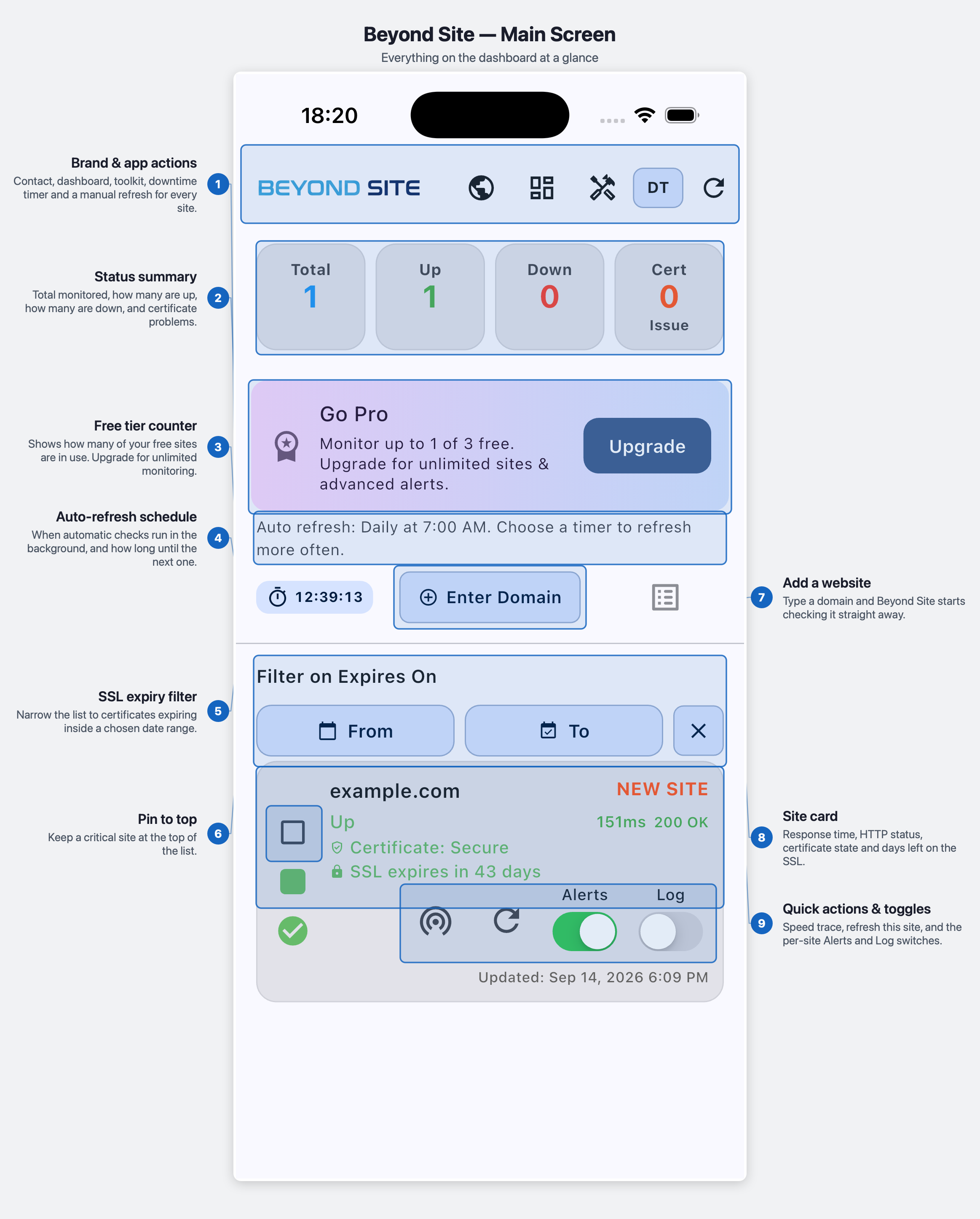
- Brand & app actionsContact, dashboard, toolkit, downtime timer and a manual refresh for every site.
- Status summaryTotal monitored, how many are up, how many are down, and certificate problems.
- Free tier counterShows how many of your free sites are in use. Upgrade for unlimited monitoring.
- Auto-refresh scheduleWhen automatic checks run in the background, and how long until the next one.
- SSL expiry filterNarrow the list to certificates expiring inside a chosen date range.
- Pin to topKeep a critical site at the top of the list.
- Add a websiteType a domain and Beyond Site starts checking it straight away.
- Site cardResponse time, HTTP status, certificate state and days left on the SSL.
- Quick actions & togglesSpeed trace, refresh this site, and the per-site Alerts and Log switches.
Long-press almost anything on the main screen for more detail. Hold the status cards (Total, Up, Down, Cert) to see what each one counts, hold an app-bar button to see what it does, and hold a site card to see its domain.
The rest of the app
Every screen, what it does, and what you will find on it
Site Details
Screen 2 of 17
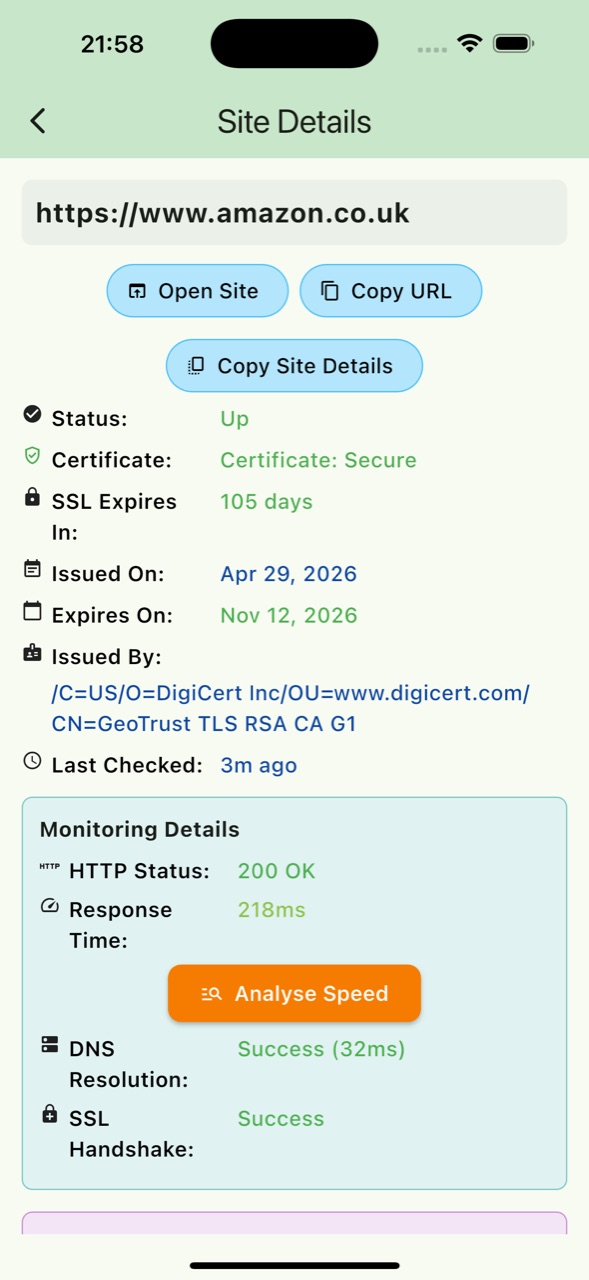
Tap any site card on the main screen to open its full diagnostic view. This is where a single check becomes a complete picture — not just whether the site is up or down, but why: response time, HTTP status, DNS resolution, the SSL certificate chain, the redirect path, and whether common ports are open. If a site feels slow, the Speed Trace here breaks down exactly where the time is going.
What’s on this screen
- Status & response timeWhether the site answered and how long it took.
- HTTP status codeThe code returned by the server (200, 500, and so on).
- DNS recordsHow the domain resolves and where it points.
- SSL certificateIssuer, validity dates, and days remaining.
- Redirect chainEvery hop a visitor is sent through.
- Port availabilityWhich common ports are open or closed.
- Speed TraceA phase-by-phase breakdown of where latency comes from.
Dashboard
Screen 3 of 17
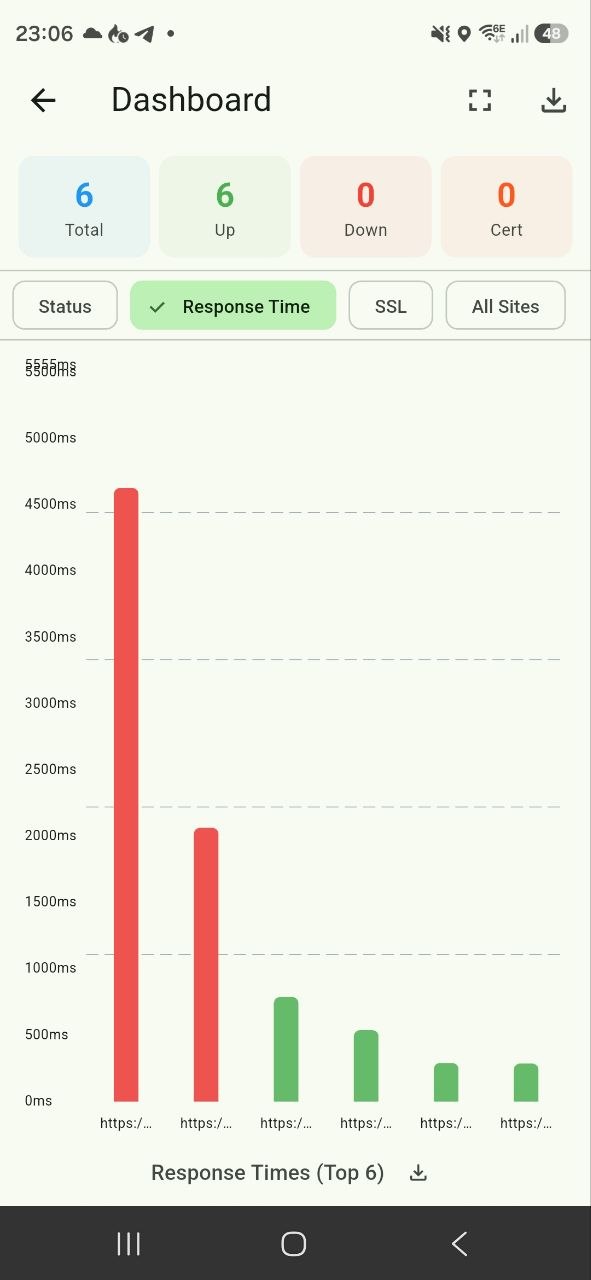
The Dashboard turns your monitoring history into interactive charts. Switch between response times and SSL expiries, spot your slowest sites, and see which certificates are closest to running out. Long-press any bar on the response-time or SSL chart to see the site name and its exact value, and open any chart full-screen for a cleaner look.
What’s on this screen
- Status distributionThe split of up, down, and warning sites.
- Response-time tabTrends and your slowest responders.
- SSL tabCertificates ordered by how soon they expire.
- Long-press a barHold any bar to see the site name and its exact value.
- Full-screen modeExpand any chart for a distraction-free view.
Auto-Refresh Timer
Screen 4 of 17
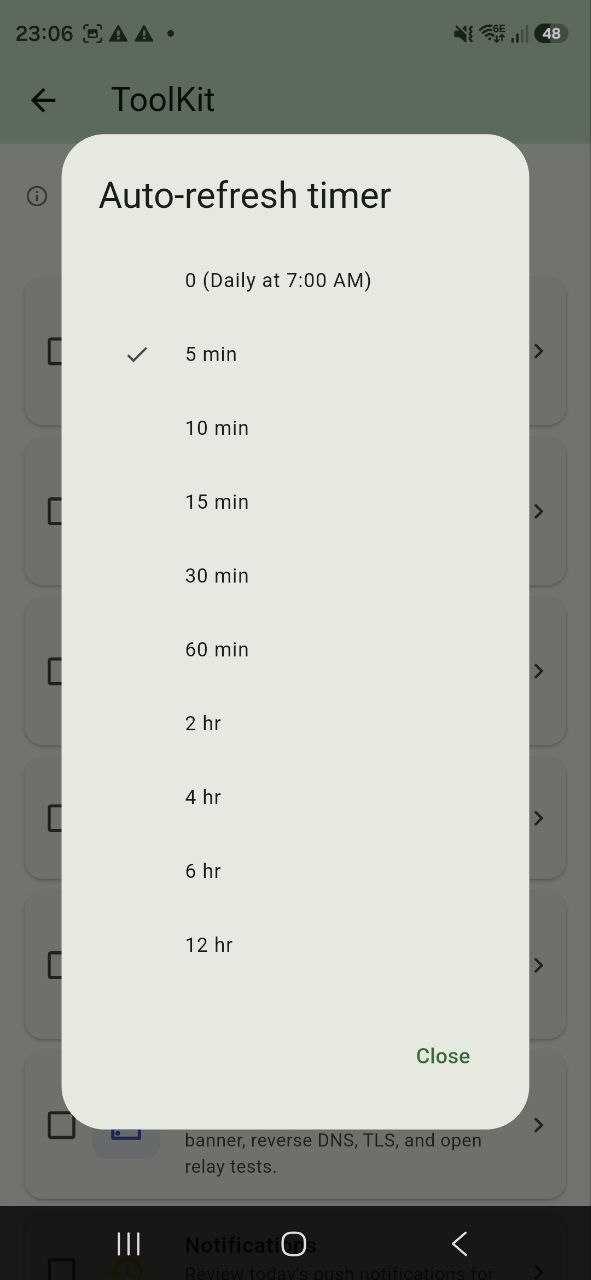
Control how often BeyondSite checks your sites. A shorter interval means you find out about problems sooner; a longer one is gentler on battery and data. Automatic checks run in the background, even while the app is closed.
What’s on this screen
- Check intervalChoose how frequently sites are re-checked.
- Background refreshChecks keep running when the app is closed.
- Next-run countdownHow long until the next automatic check.
Scheduled Downtime
Screen 5 of 17
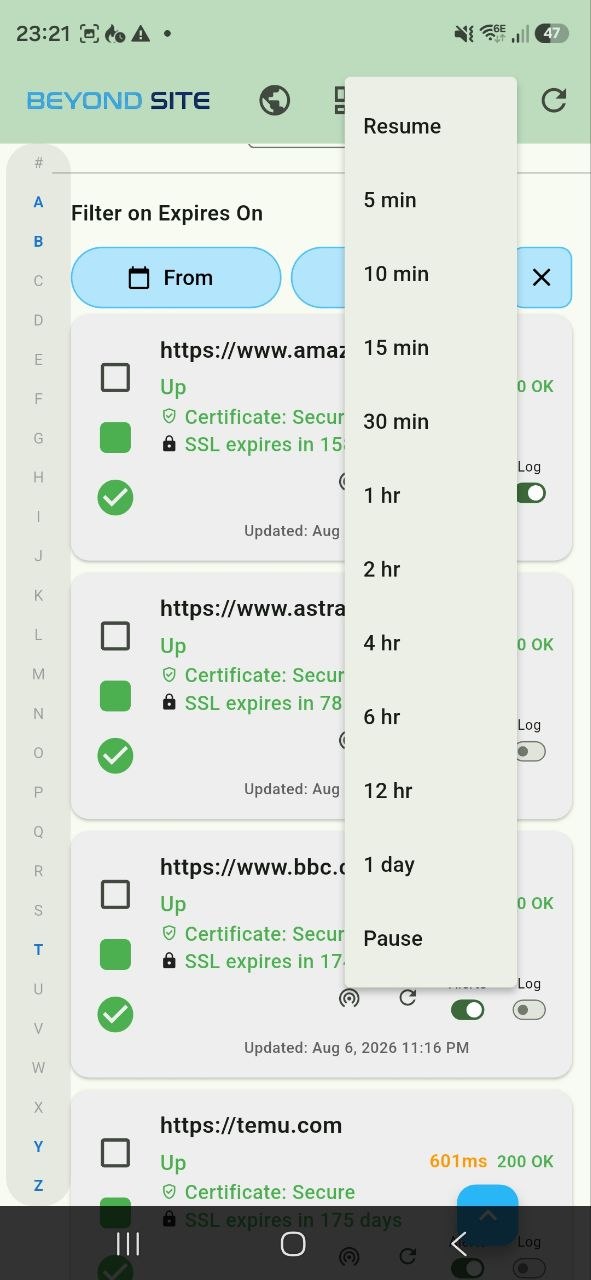
Taking a site offline on purpose? Pause monitoring for a set period so a planned outage does not trigger a flood of alerts. Monitoring resumes automatically when the timer ends.
What’s on this screen
- Pause monitoringSilence checks while you work on a site.
- Timer-based resumeSet how long the pause should last.
- No false alertsPlanned outages are not reported as failures.
Alert Settings
Screen 6 of 17
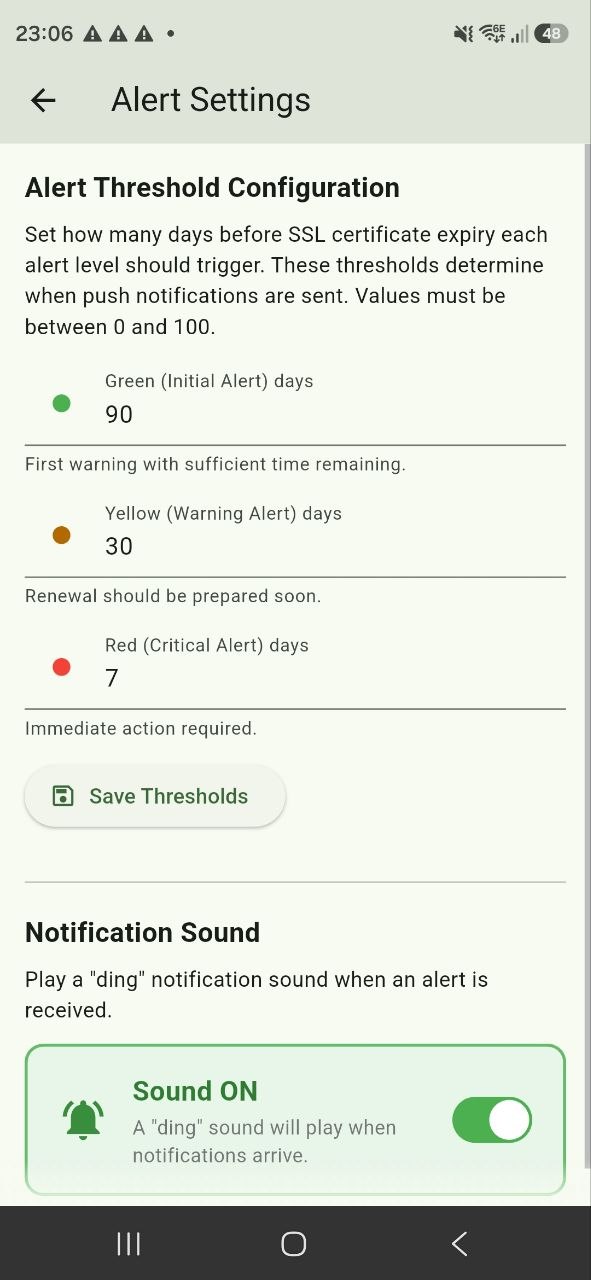
Set the thresholds that decide when BeyondSite warns you. Three levels — green, yellow, and red — each carry their own SSL-expiry day range. The app enforces red ≤ yellow ≤ green so the levels can never overlap or conflict. Your thresholds decide when a push notification is sent to your device.
What’s on this screen
- Threshold daysGreen, yellow, and red ranges from 0 to 100 days.
- Notification soundChoose the sound that plays for alerts.
- Push notificationsYour thresholds decide when an alert reaches your device.
Email ConfigurationComing soon
Screen 7 of 17
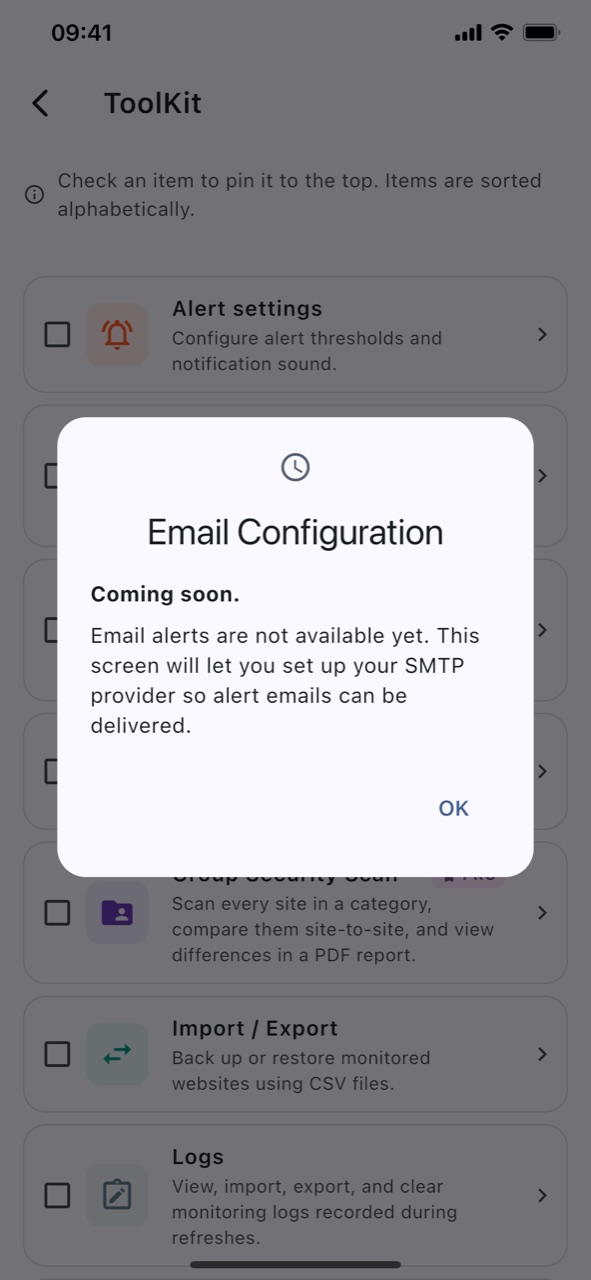
Email alerts are on the way. This screen is the groundwork for them and shows a Coming soon notice for now. At the moment your alerts arrive as push notifications, telling you as soon as something goes wrong.
What’s on this screen
- Alerts todayPush notifications, delivered straight to your device.
- On the way: provider presetsGmail, Outlook, Yahoo, or a server of your own.
- On the way: test emailSend yourself a test before you rely on it.
DNS MonitorPro
Screen 8 of 17
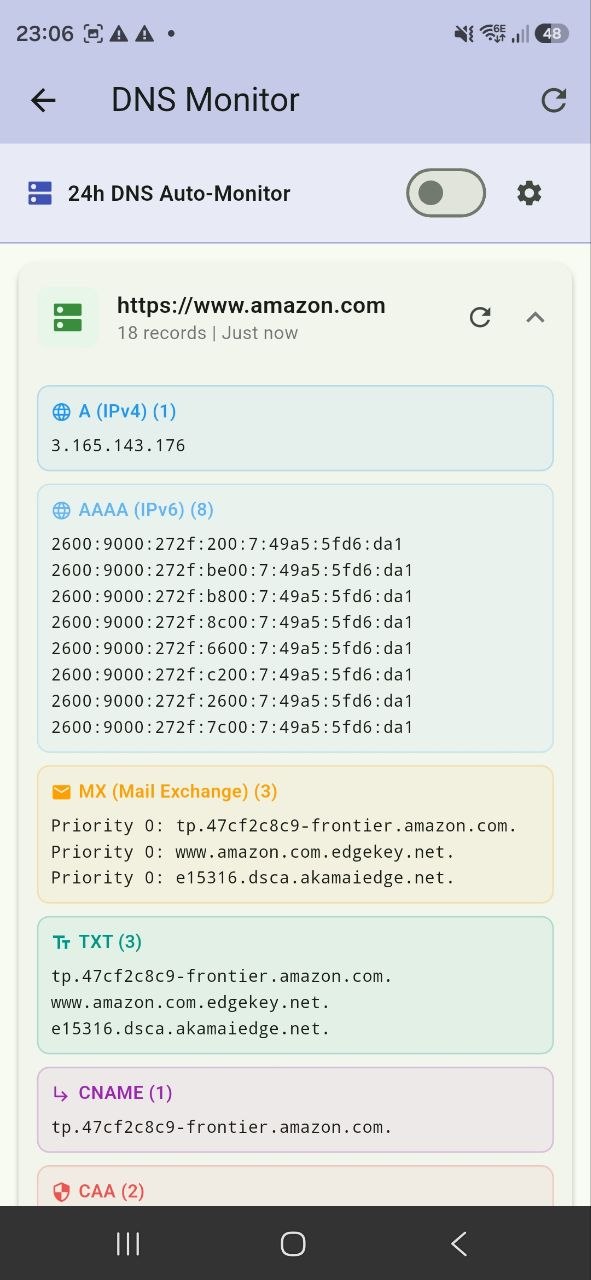
Look up and validate a domain’s DNS records, including A, AAAA, MX, TXT, CNAME, CAA, and SOA. BeyondSite checks DNSSEC signing, compares results across global resolvers for propagation consistency, and keeps a history of changes. Enable 24-hour auto-monitoring to be told the moment a record changes.
What’s on this screen
- Record typesA, AAAA, MX, TXT, CNAME, CAA, and SOA.
- DNSSEC validationWhether the zone is properly signed.
- Propagation checkConsistency across global resolvers.
- Change historyA record of what changed and when.
- 24-hour auto-monitorWatch for record changes in the background.
SSL / Security ScanPro
Screen 9 of 17
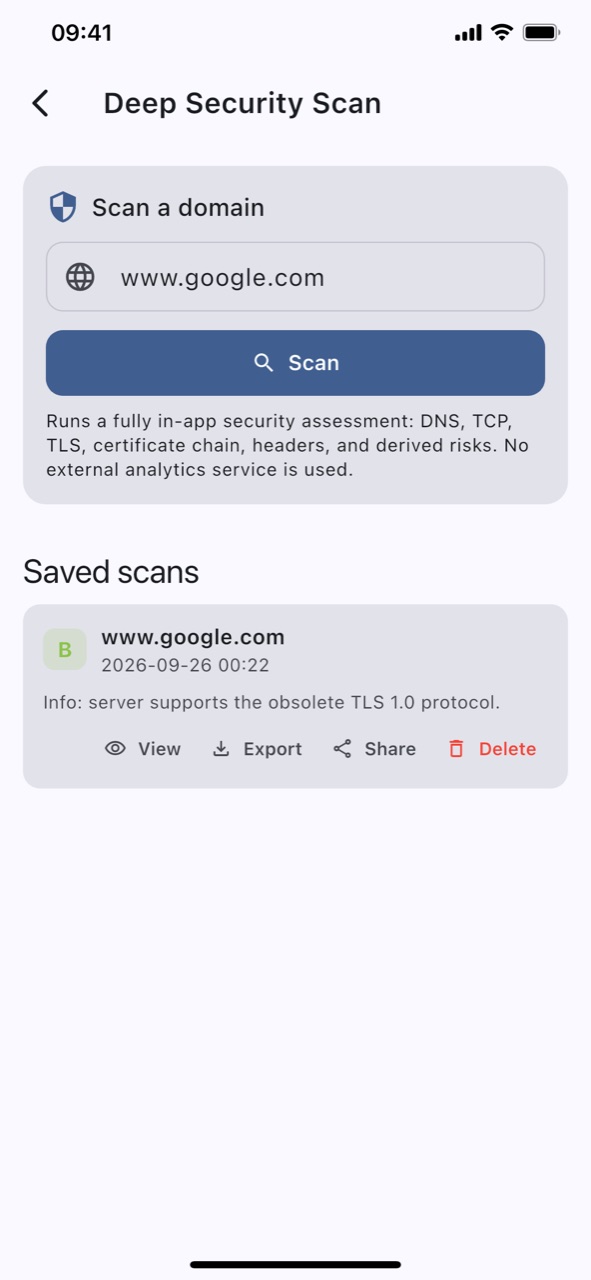
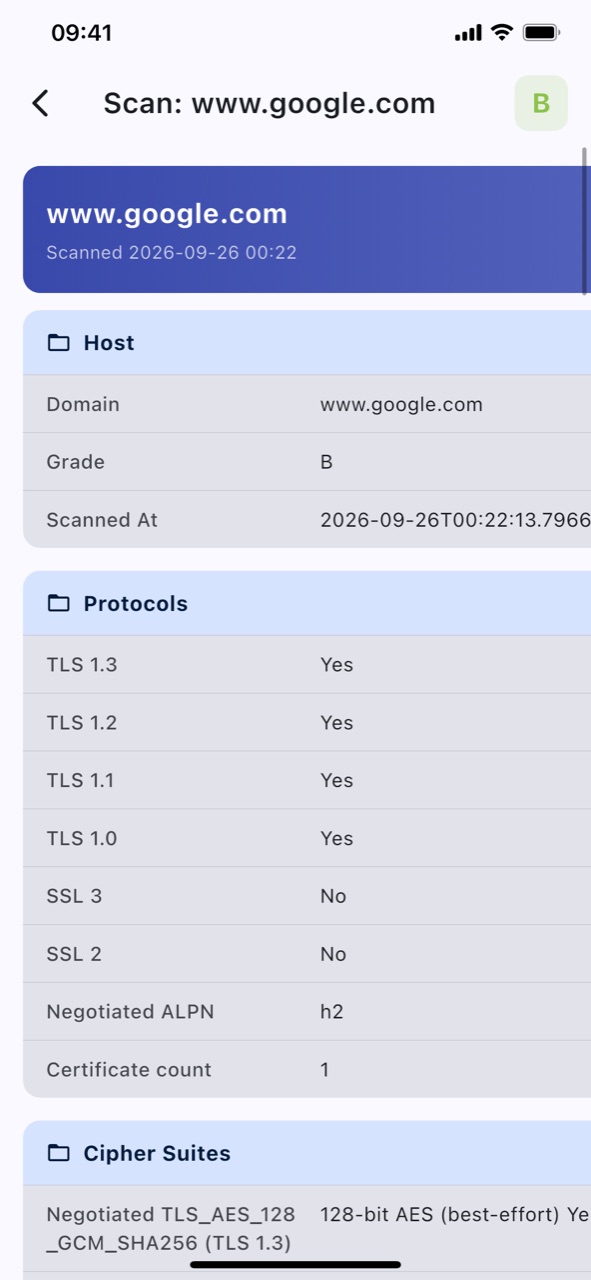
Run a deep, single-domain security scan entirely on your device. The scan produces a graded report covering your certificate chain, TLS configuration, and other security signals. Past scans are saved so you can review, export, share, or delete them.
What’s on this screen
- On-device scanThe check runs locally, not on a remote server.
- Security gradeA clear grade badge summarises the result.
- Certificate & TLSChain validity and TLS configuration checks.
- Saved historyView, export, share, or delete past scans.
Group Security ScanPro
Screen 10 of 17
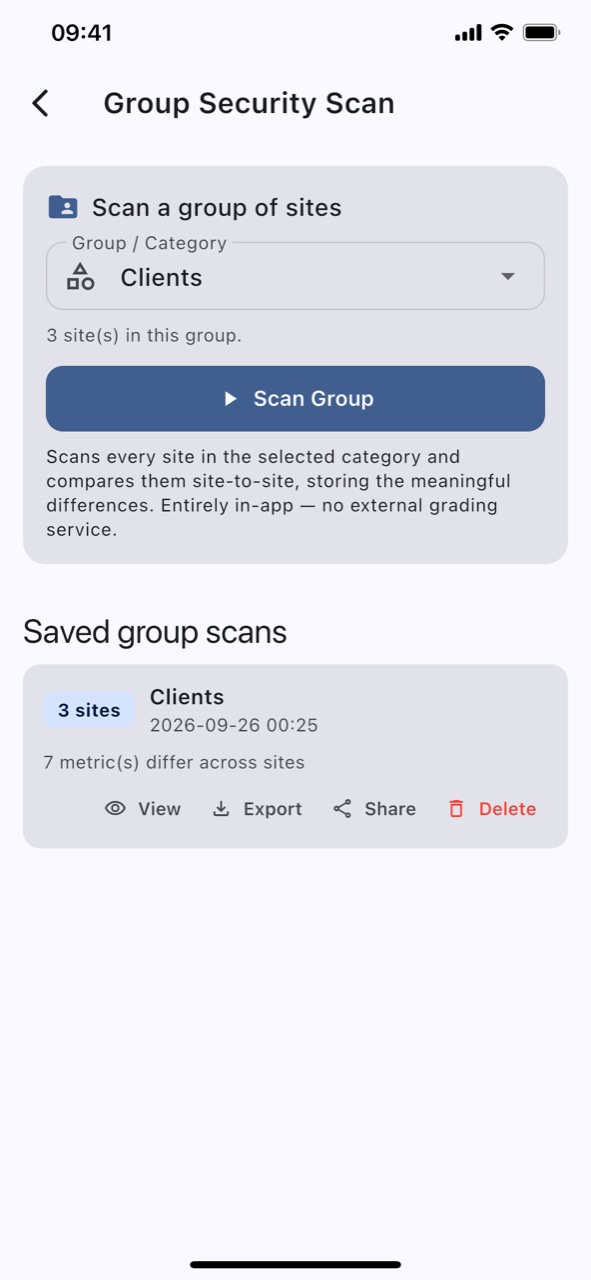
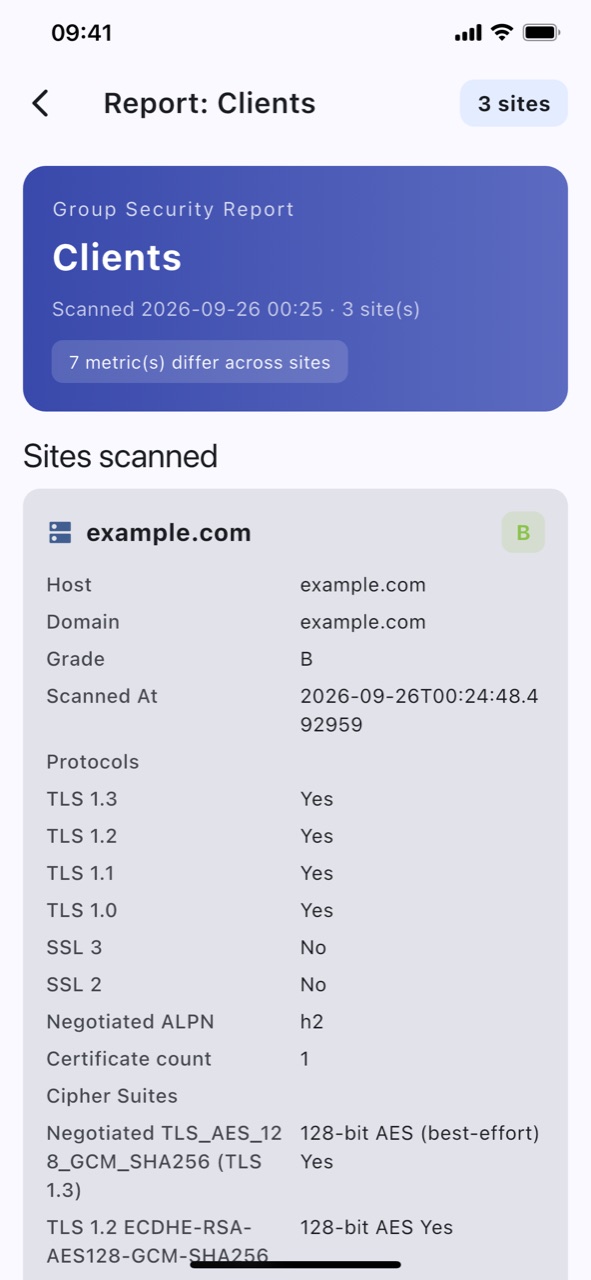
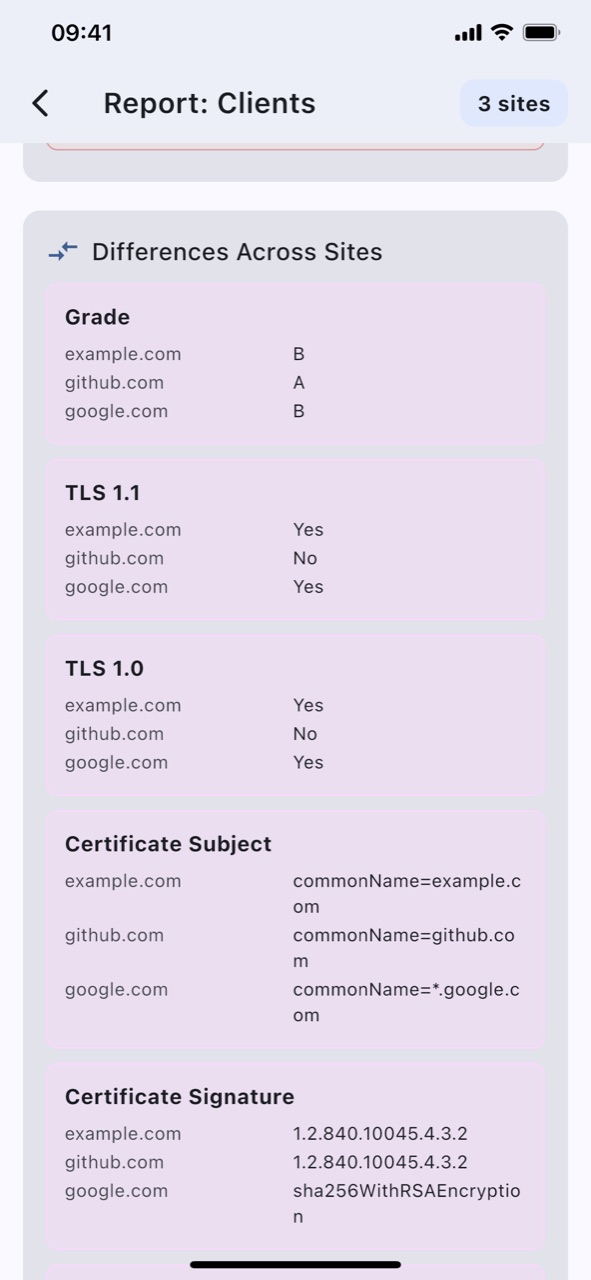
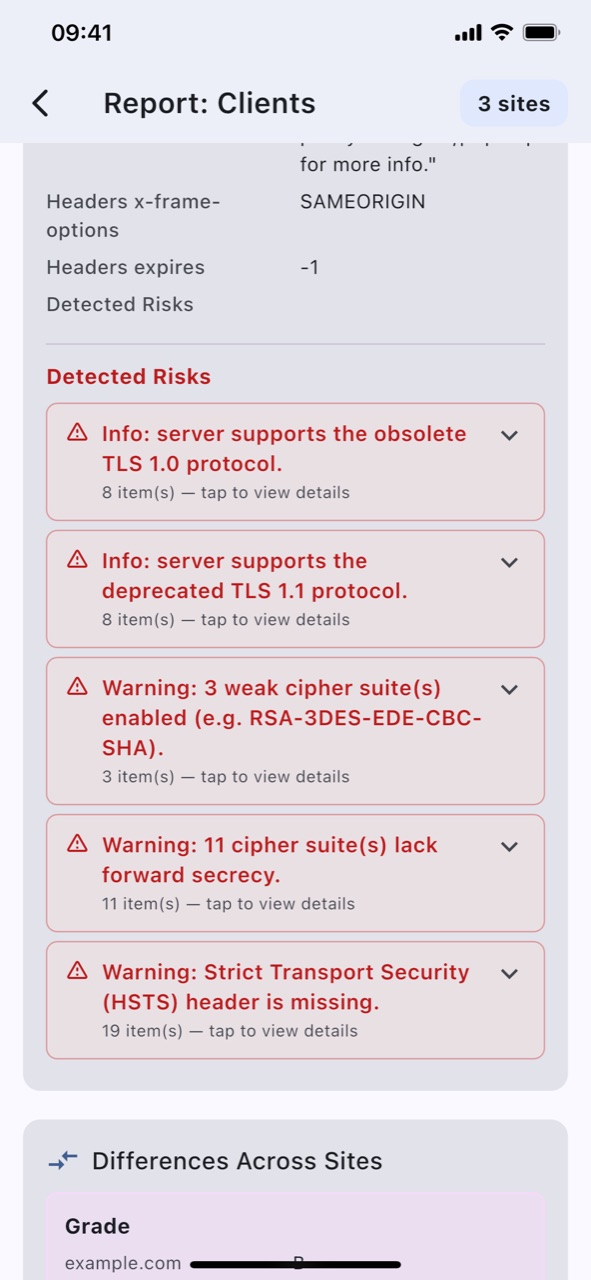
Scan every site in a category in one go and get a PDF report. The report includes a section for each site plus a “Differences Across Sites” summary, so you can quickly spot where one site diverges from the rest.
What’s on this screen
- Scan a categoryRun the scan against every site in a group.
- Per-site resultsA section for each scanned site.
- Differences summaryHighlights where sites diverge.
- PDF reportExport and share the report as a PDF.
Mail Server CheckPro
Screen 11 of 17
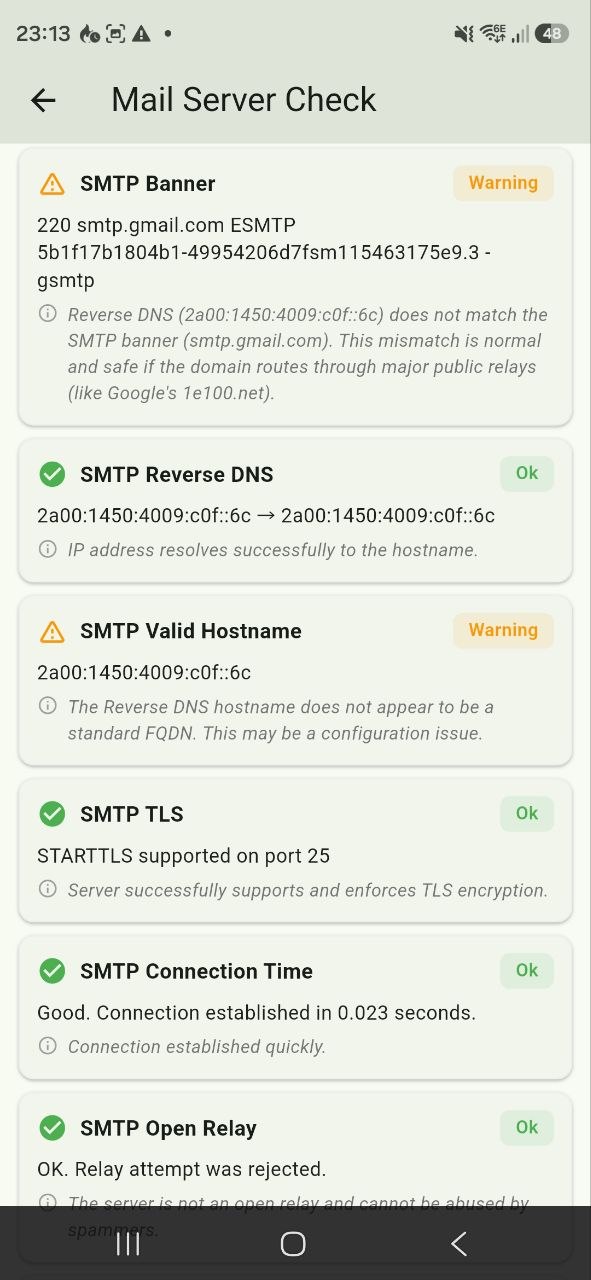
Run SMTP handshake diagnostics against a mail server. BeyondSite checks the banner, reverse DNS, TLS support, and open-relay behaviour, then reports each with a colour-coded pass or fail indicator.
What’s on this screen
- SMTP handshakeConnects and reads the server greeting.
- Reverse DNSChecks the server’s PTR record.
- TLS supportWhether encryption is available.
- Open-relay testDetects servers that forward mail for anyone.
Ping Tool
Screen 12 of 17
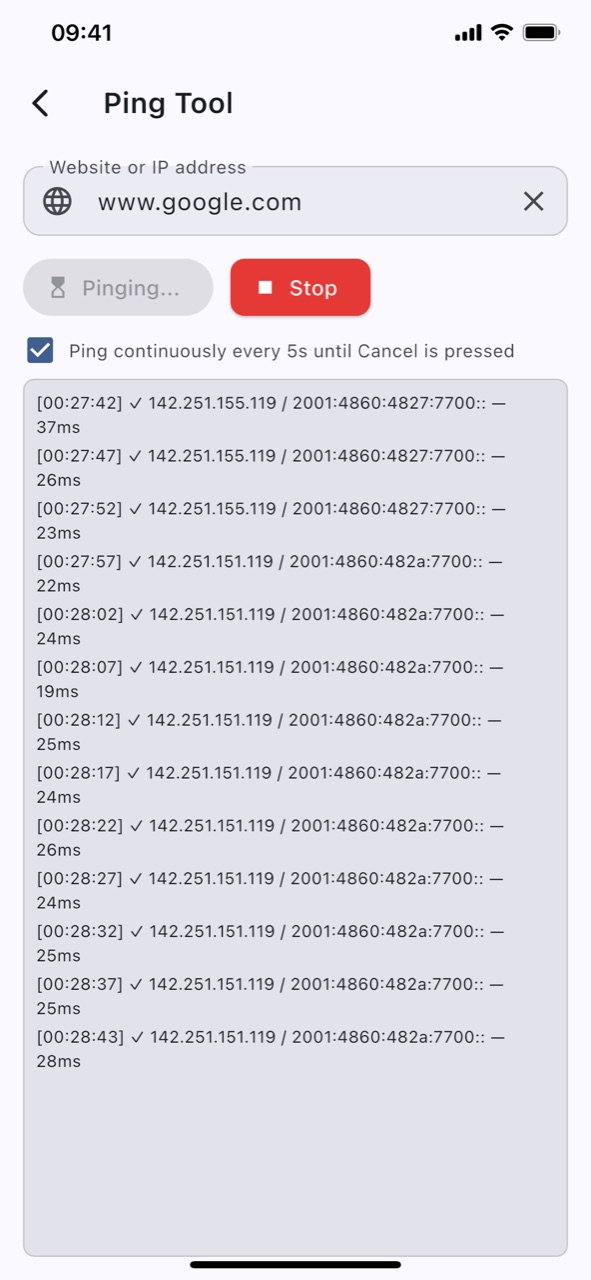
Quickly test whether a host is reachable and how long it takes to respond. Useful before adding a site permanently, or when you want a second opinion on connectivity.
What’s on this screen
- Ping any hostA domain or IP address.
- Round-trip latencyHow long the response takes.
- ReachabilityA clear result for whether the host answered.
Logs
Screen 13 of 17
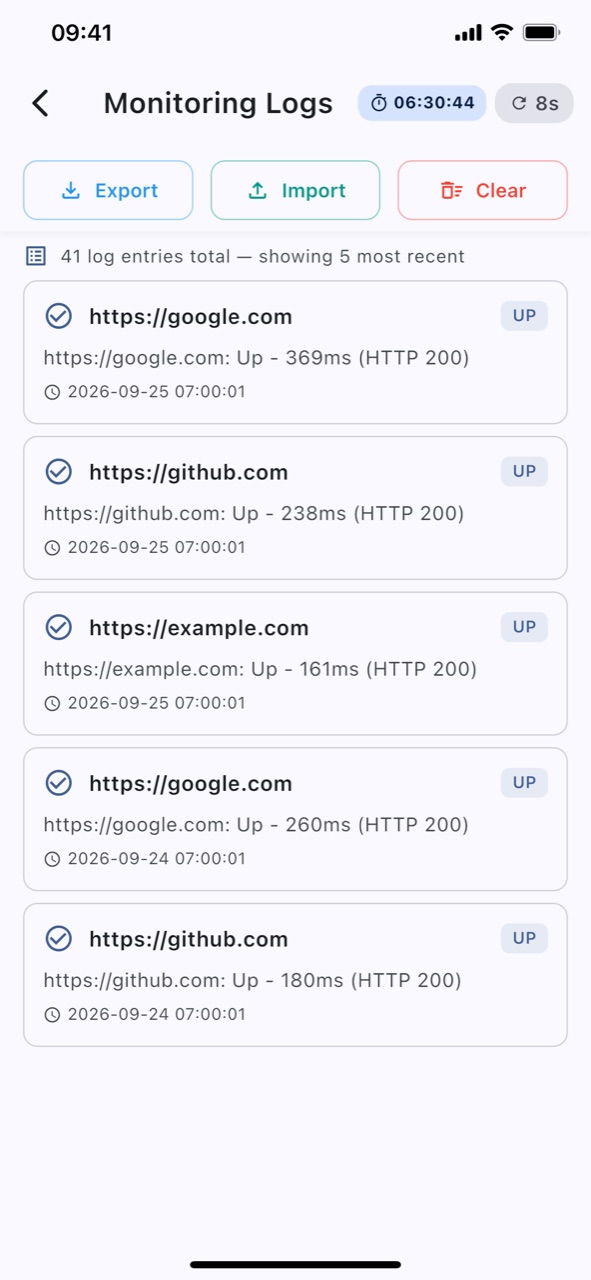
Logs keep your most recent monitoring results — the five latest checks are shown, with the full total just above them. Clear them when you want a fresh start, or import and export them for safekeeping and analysis.
What’s on this screen
- Five recent checksThe latest results, up to five records.
- ClearWipe the log for a fresh start.
- Import / exportMove log data in or out of the app.
Notifications
Screen 14 of 17
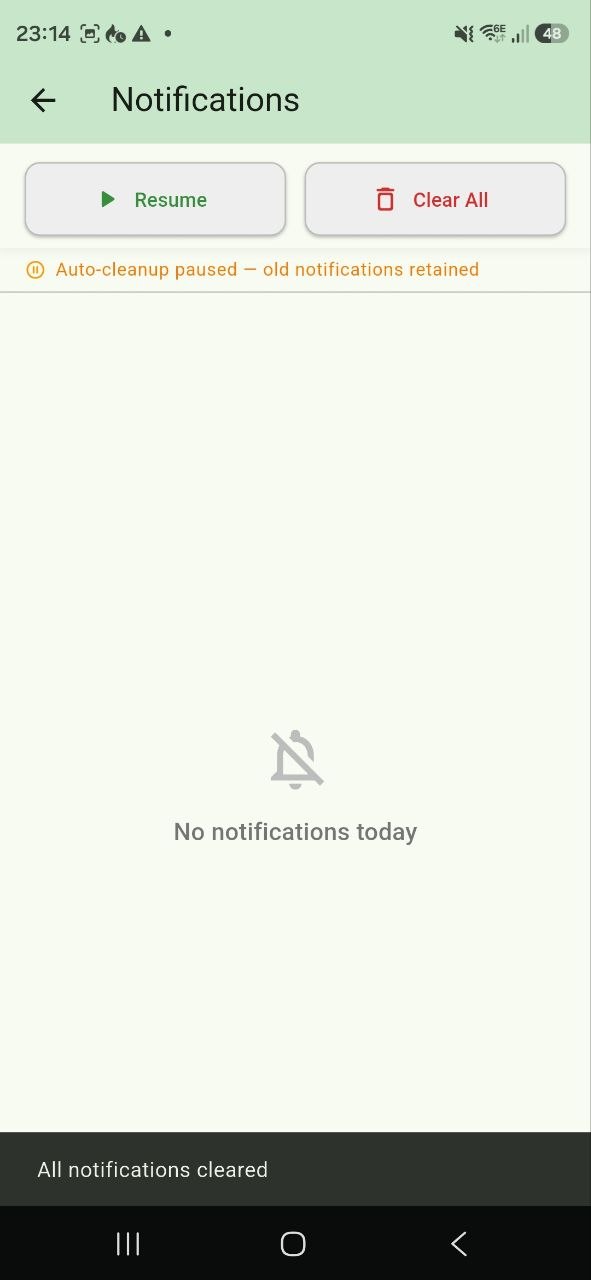
See the push notifications BeyondSite has raised today, with controls to manage how they are cleaned up automatically. Pause the automatic removal, clear everything, or resume at any time.
What’s on this screen
- Today’s alertsA list of the notifications raised today.
- Auto-cleanupOld notifications are removed automatically.
- Pause / Clear / ResumeTake control of the notification list.
Site Categories
Screen 15 of 17
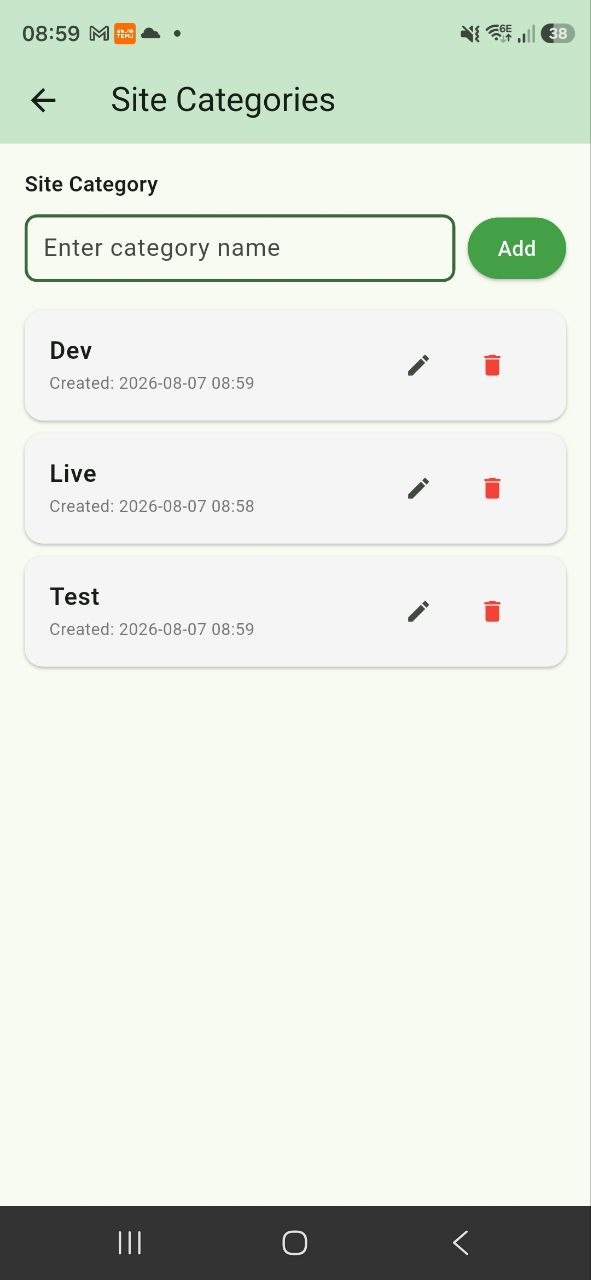
Organise your sites into categories such as Work, Home, Live, Test, or Dev. Categories keep the site list tidy and power the Group Security Scan.
What’s on this screen
- Add / rename / deleteManage your categories freely.
- Two-word namesCategory names are limited to two words.
- Powers group scanCategories define group scan targets.
Import / Export
Screen 16 of 17
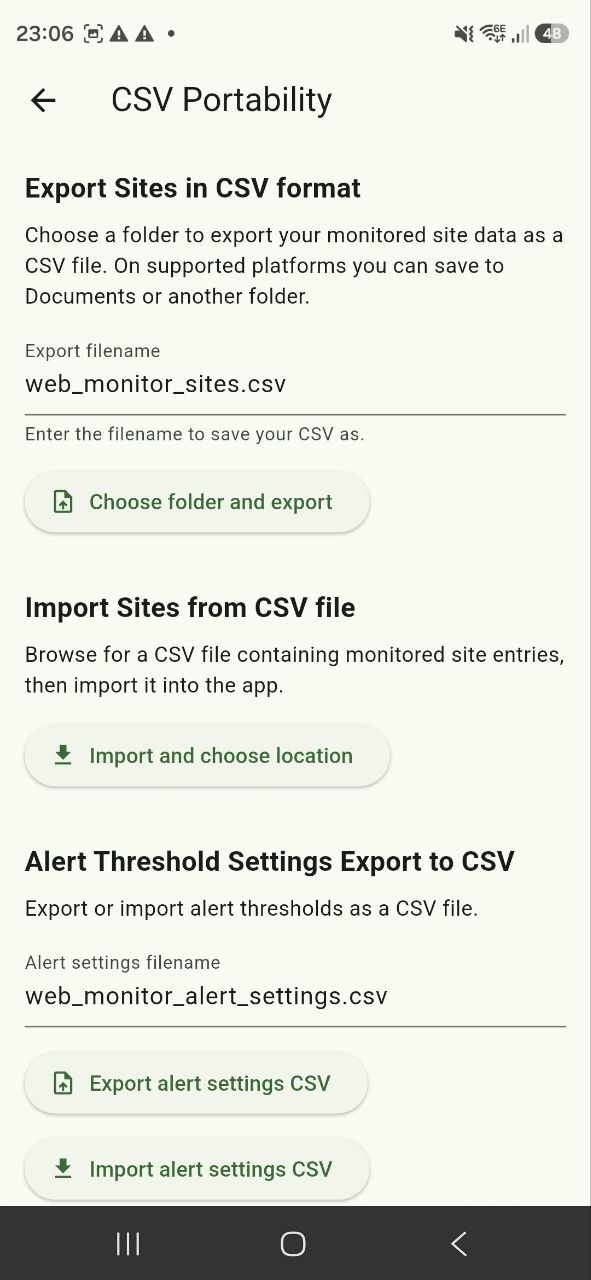
Move your sites and alert settings in or out as CSV. Export for backup or sharing, and import to restore — with the free-tier site limit applied on import so you never exceed your plan.
What’s on this screen
- CSV exportBack up your sites and alert settings.
- CSV importRestore or migrate from another device.
- Plan-awareFree-tier site cap is enforced during import.
Permissions
Screen 17 of 17
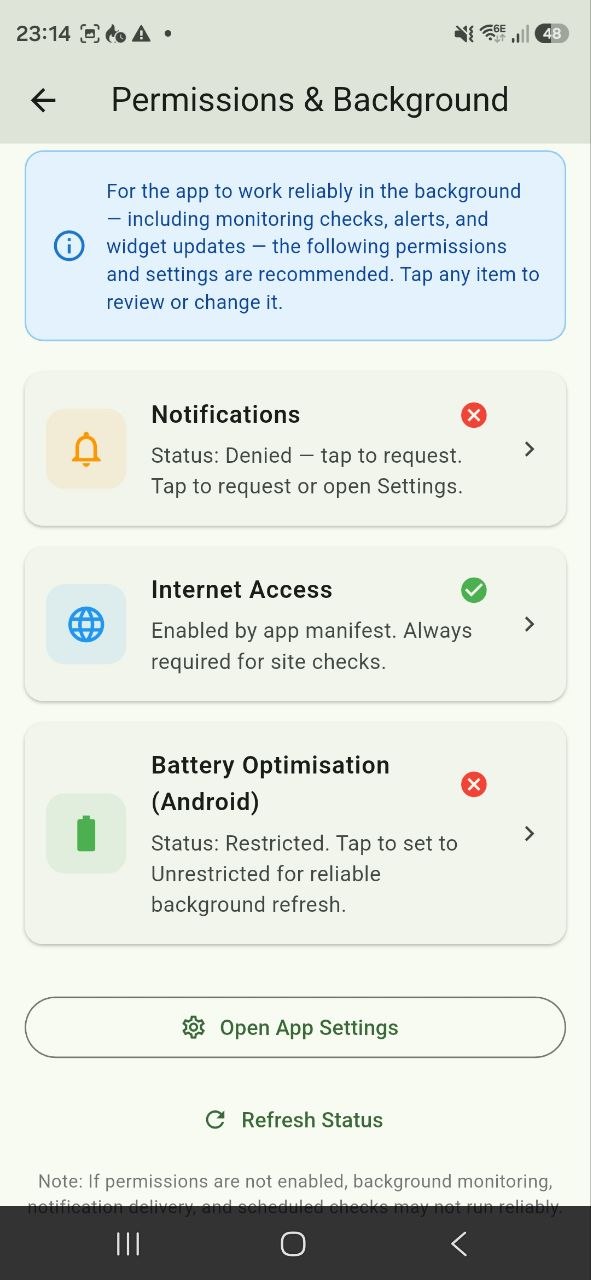
A single checklist of everything the app needs to monitor in the background and send notifications — with the current OS-reported state and a tap-through to the right settings screen.
What’s on this screen
- NotificationsNotification status for iOS (Android coming soon).
- Battery optimisationComing soon on Android.
- Background App RefreshiOS setting that keeps checks running.
- Tap to openEach item links straight to the OS settings screen.
Want more detail?
Beyond Site has more depth than the dashboard first shows
App Guide
A closer look at the DNS monitor, deep SSL and security scanning, mail server checks, categories and the other built-in tools.
Features
The complete list of what Beyond Site can check, from availability and response time through to certificate chains and DNS records.
Still stuck?
Email us and we will help. We would also genuinely like to hear if something in the app is confusing — that is how the guide improves.